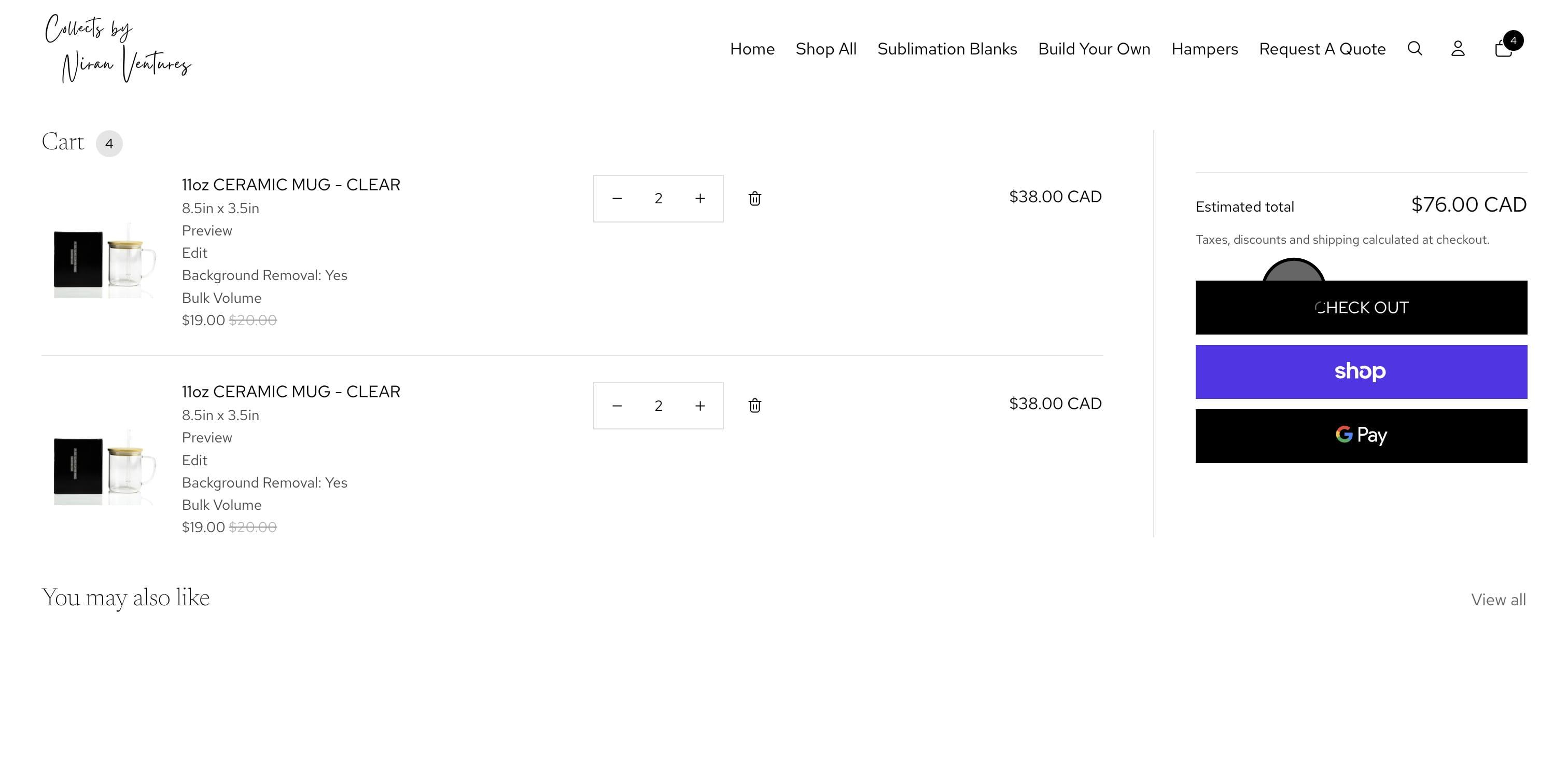
The guide below shows you how to customize products that come with customize this design button.
Video:
Detailed Guide:
1. Navigate to https://yourcollects.com/
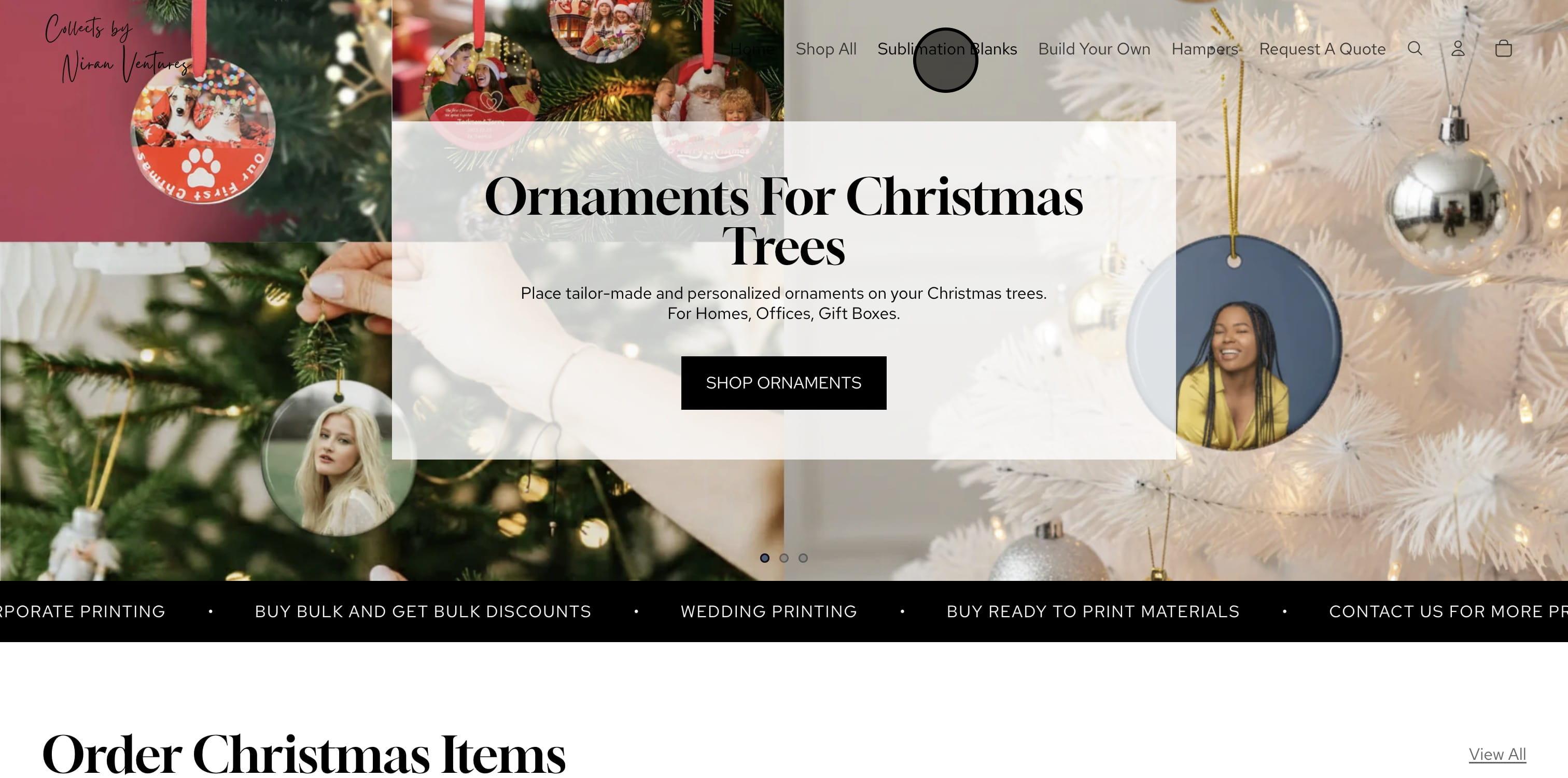
2. Select a Product, In this case, we will select "Sublimation Blanks"
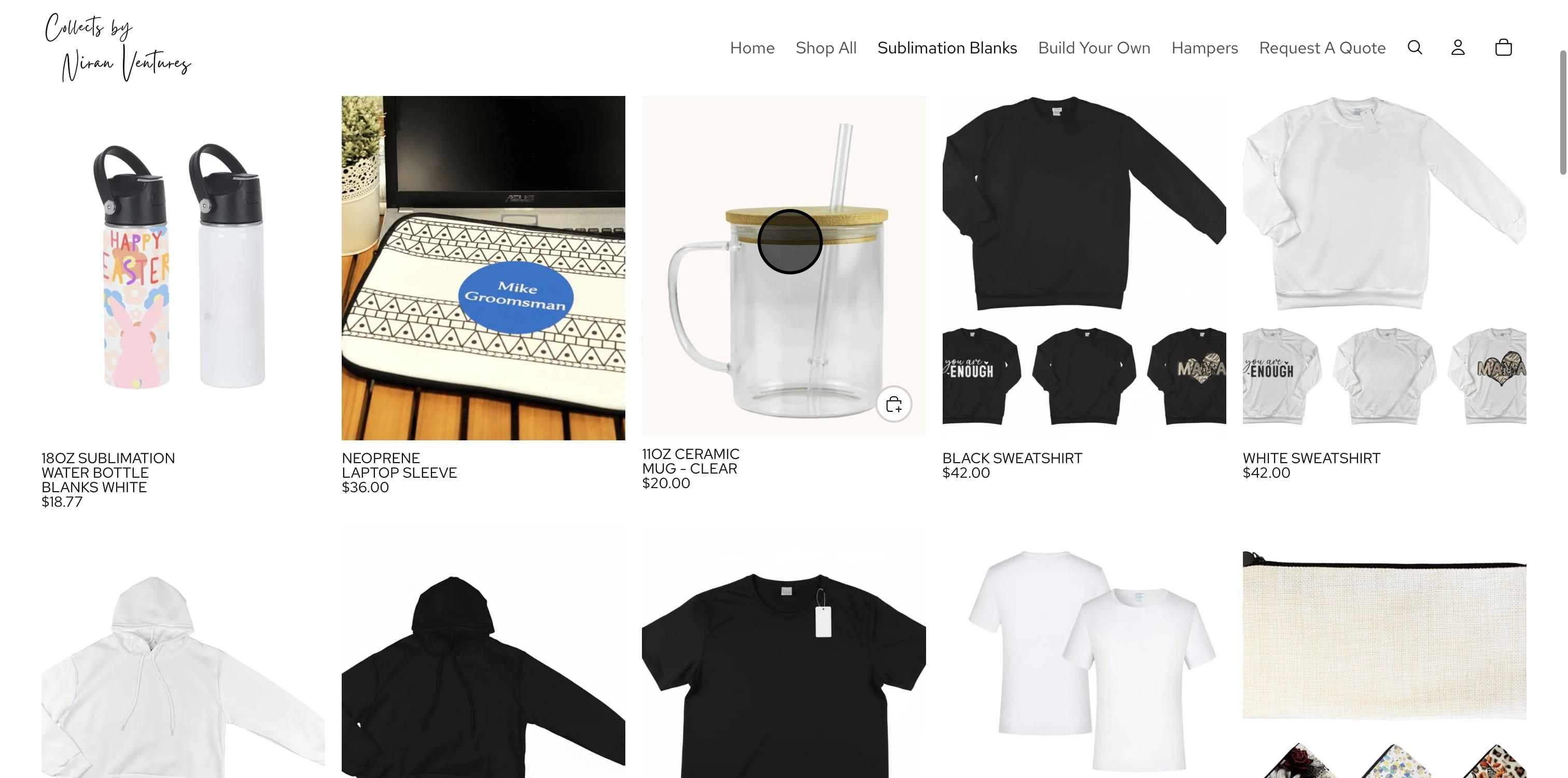
3. Click on a Product you will like to Print On
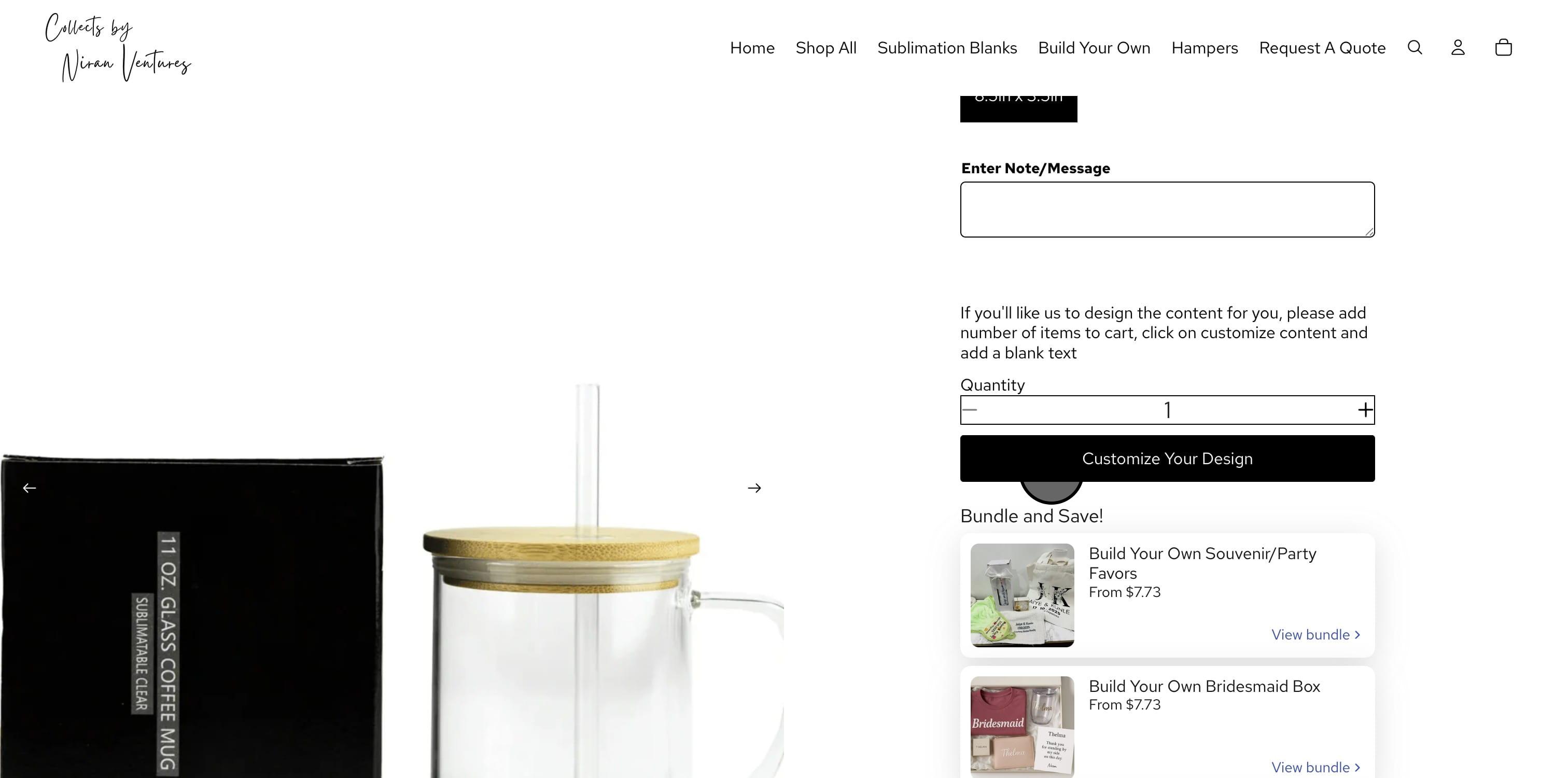
4. There is an option to add more quantity here however if you are not using the same design on all the items, don't add quantity at this point, You can add quantity in the design page. Click on "Customize Your Design" to begin designing.
5. You should a gang sheet builder, if you already used it and want to re-edit it, then select Open a Previously Ordered Gang Sheet.
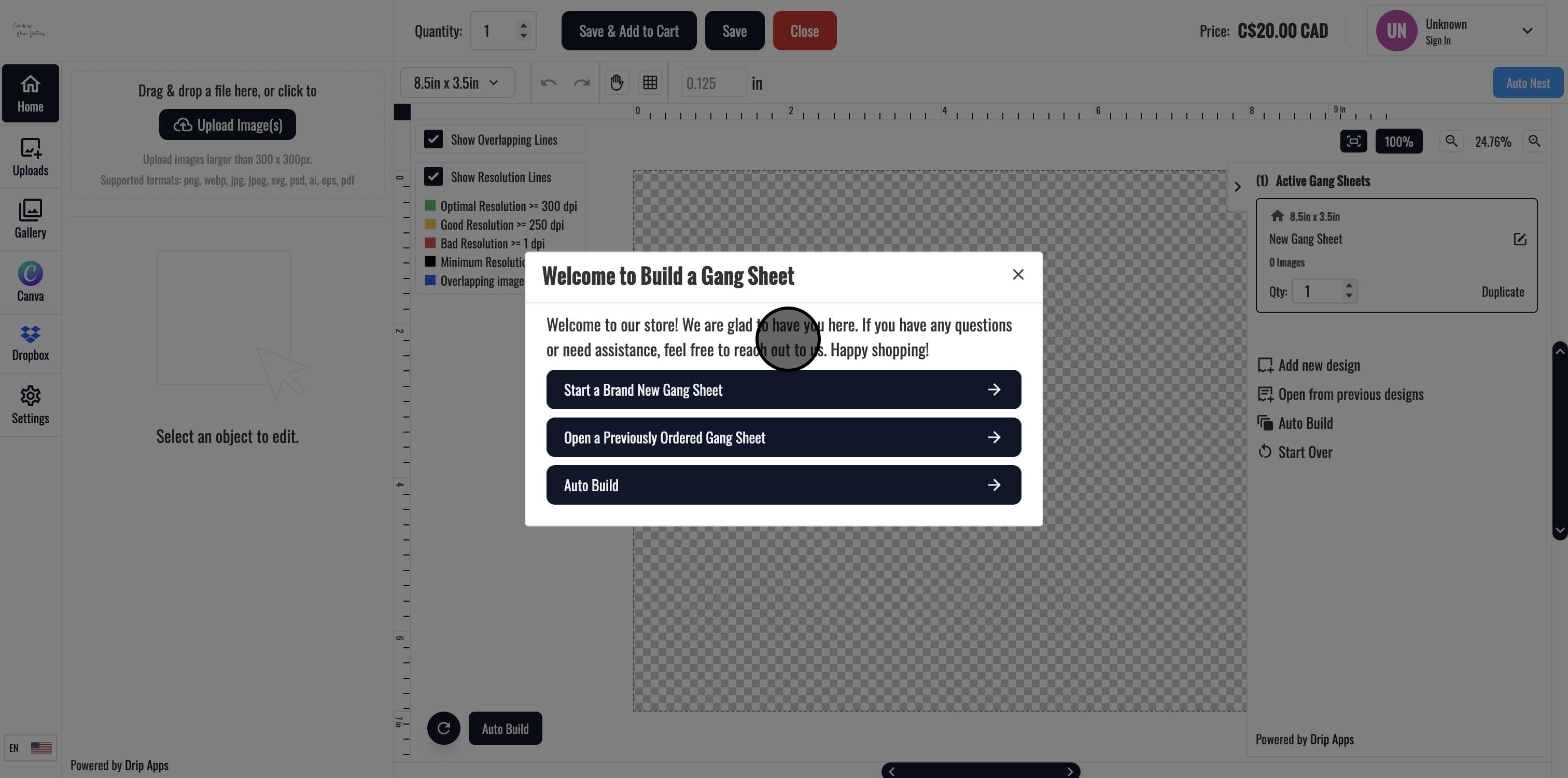
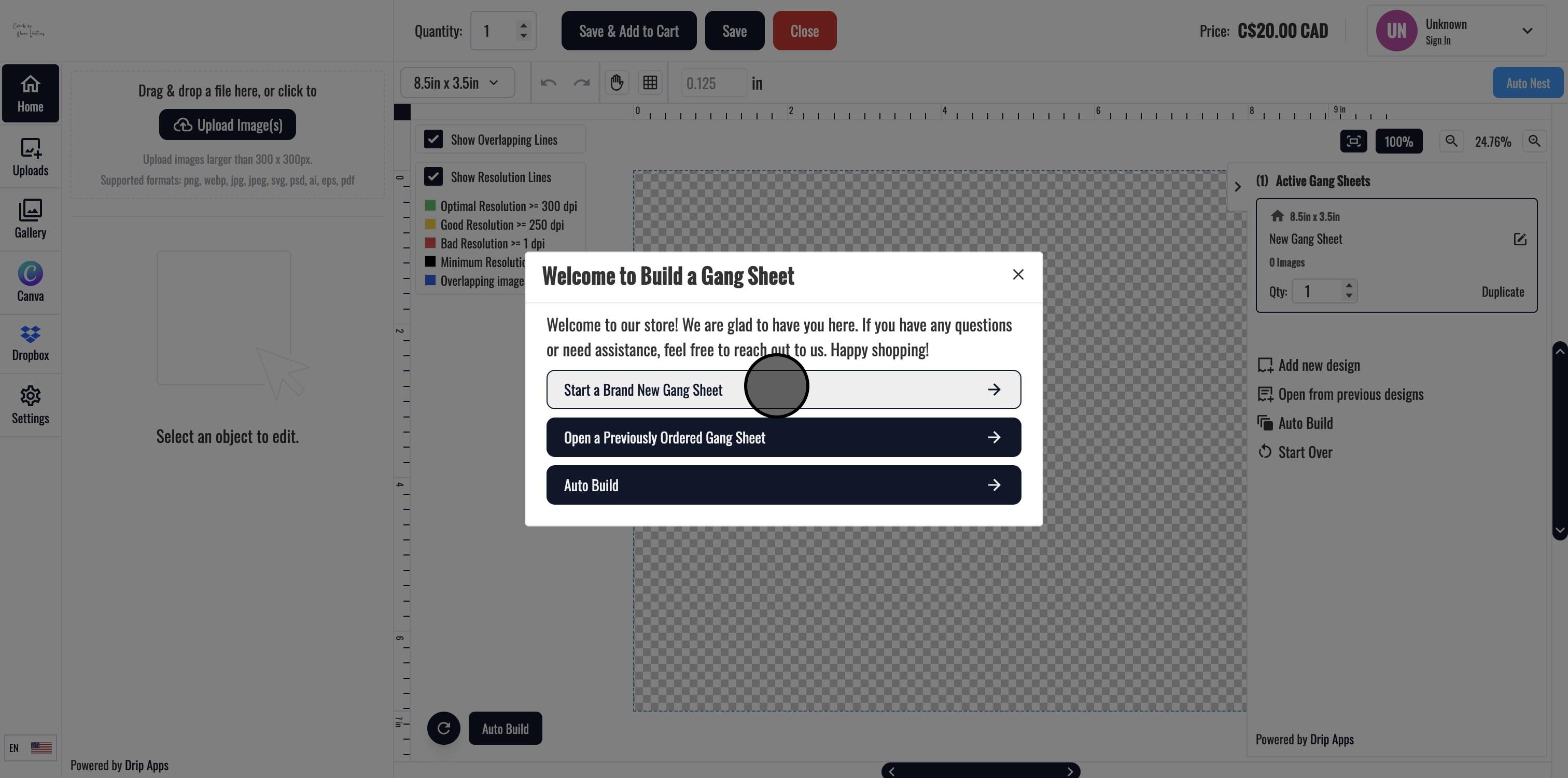
6. If you want a new design, Click on "Start a Brand New Gang Sheet"
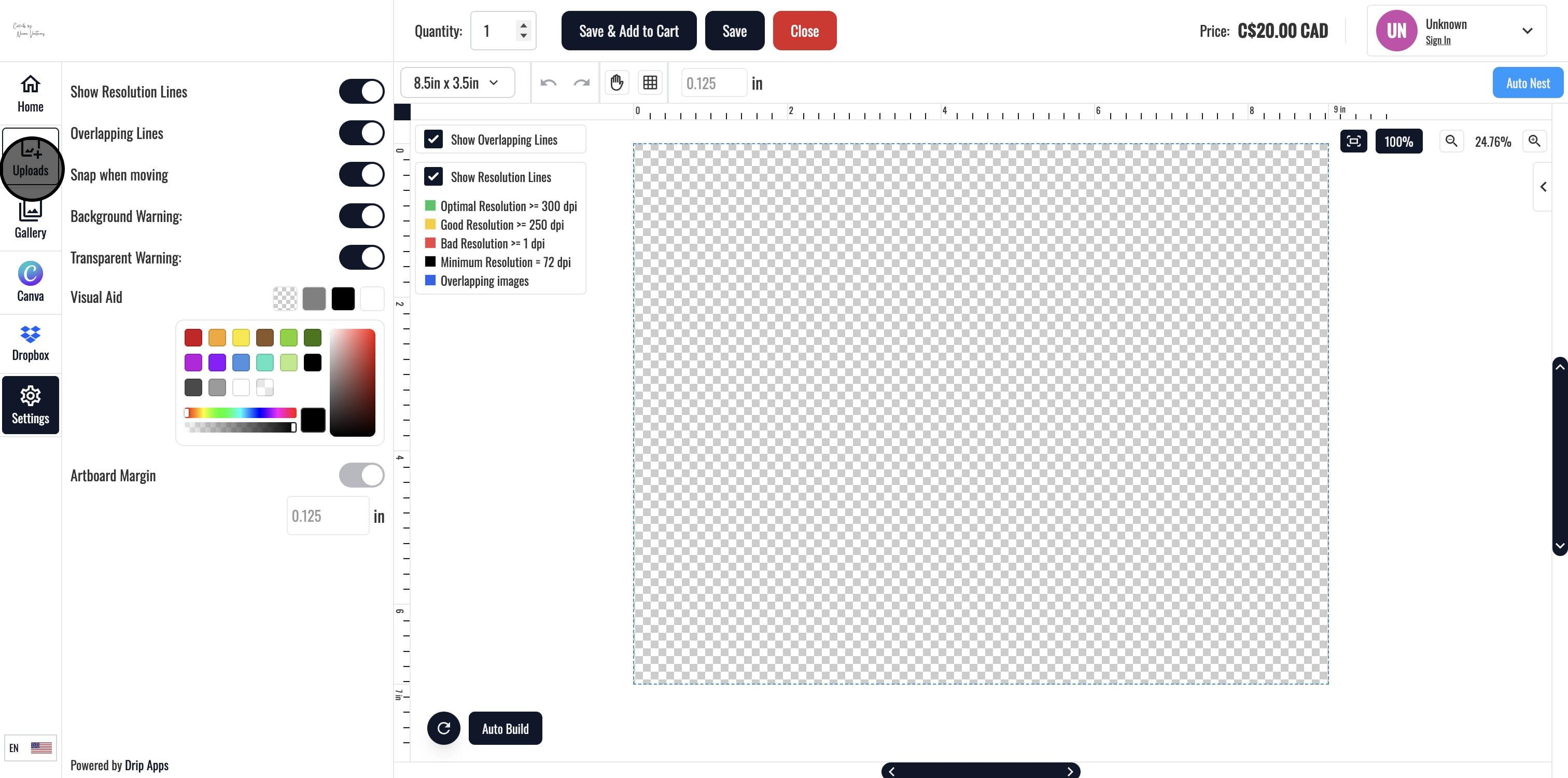
7. You can use "Uploads" to upload your images, you can also use Gallery, Canva or Dropbox to provide your designs
8. If you want to simplify the design and have the tool automatically align your image, you can use "Auto Build". This will use your image and auto-build the layour based on how they should be best positioned. Go back if you'll like to use the Text Feature
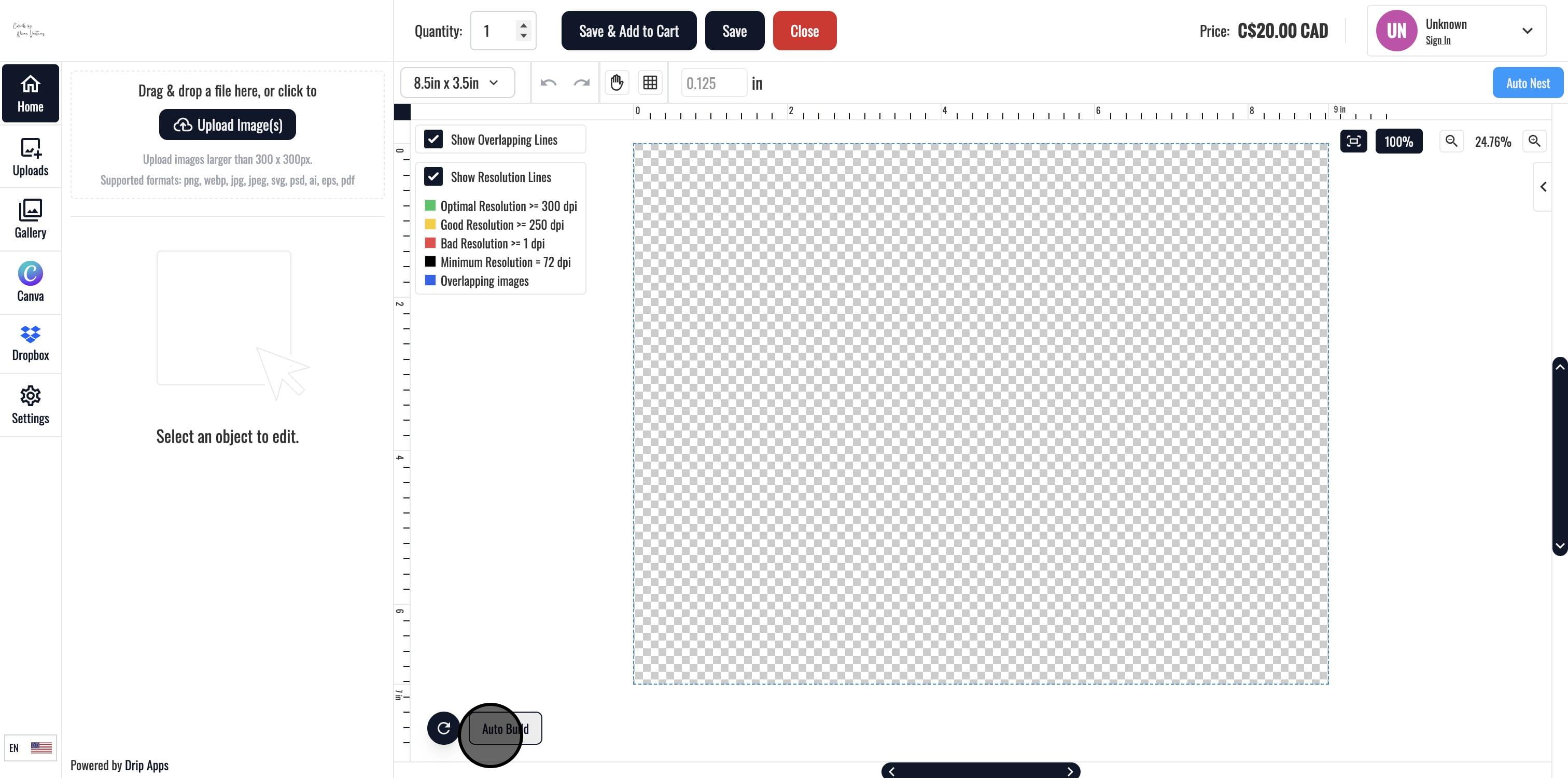
9. Lets now use the builder for an image. Click on Upload Image
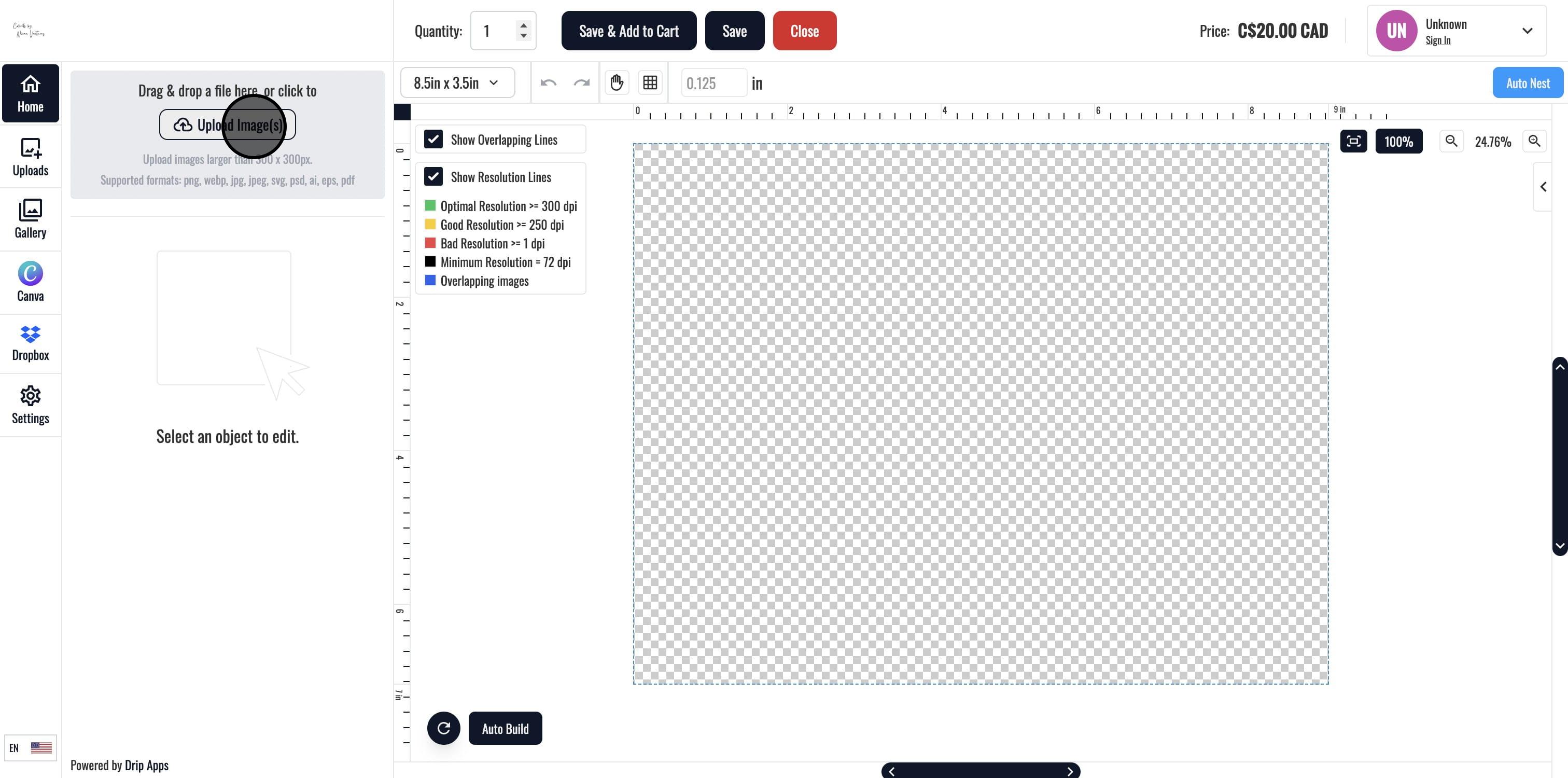
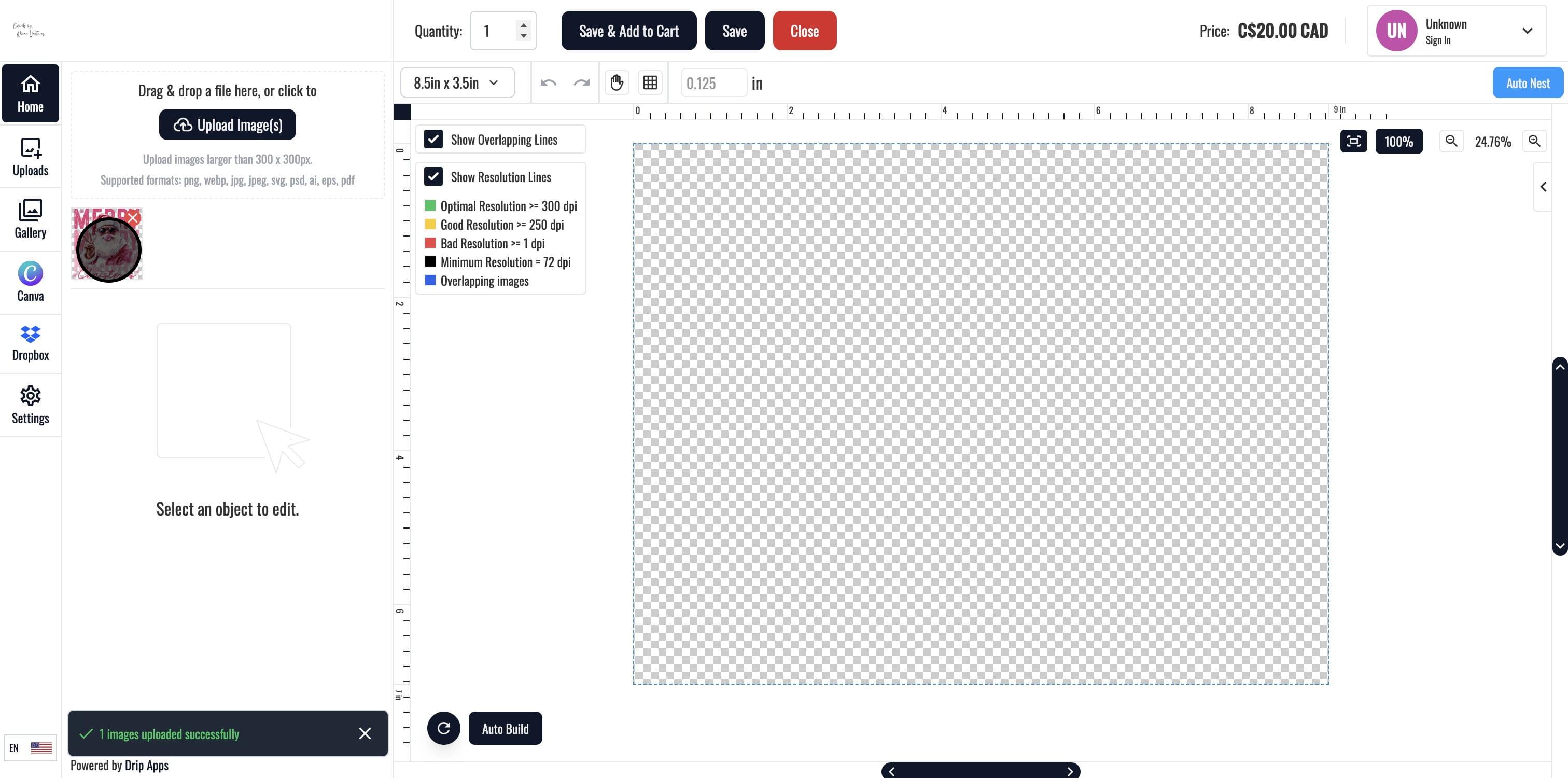
10. Once Uploaded, Click on the image to add to the design grid.
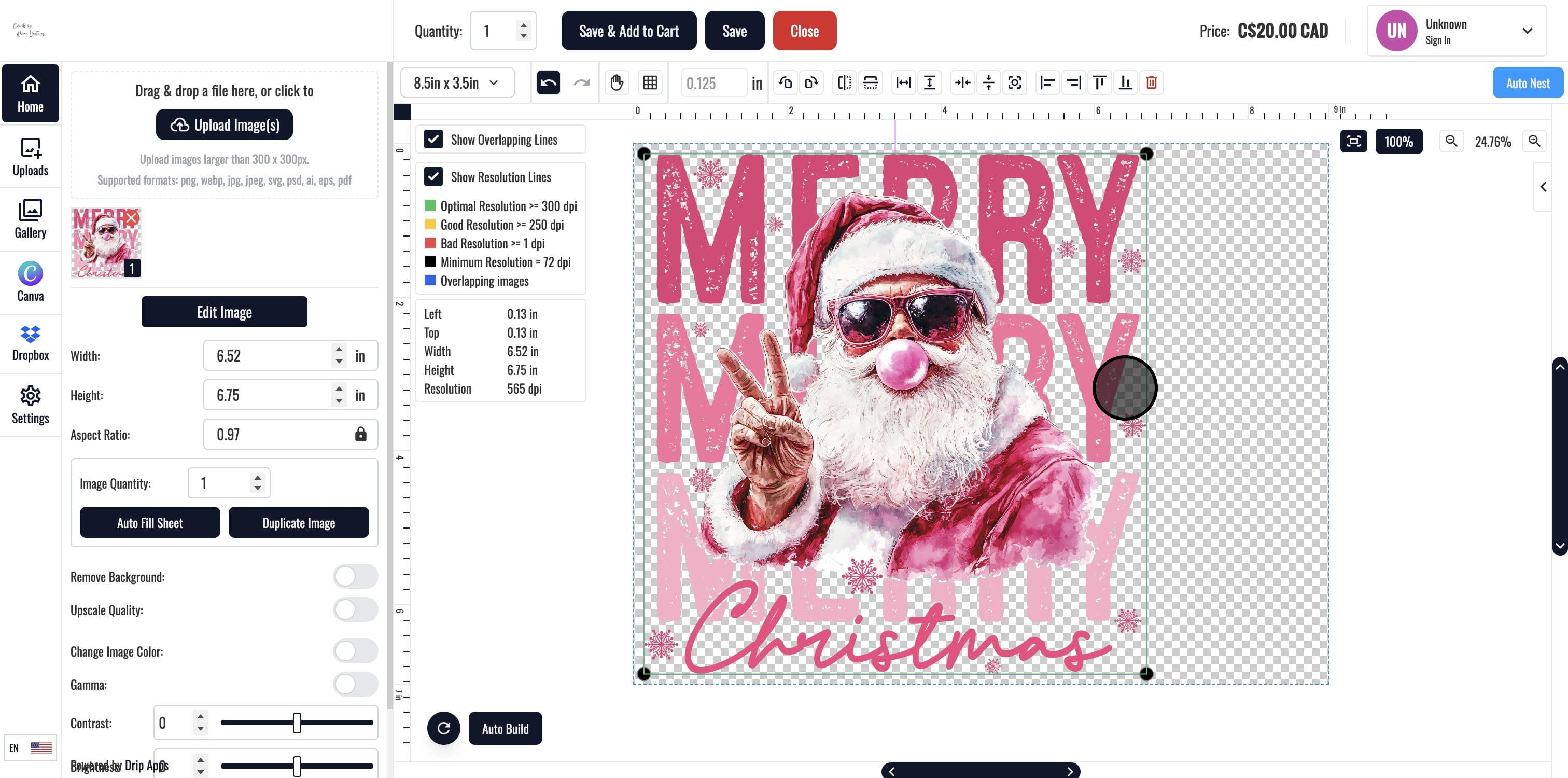
11. Adjust the image as you prefer on the sheet.
12. If you'll like different designs and want more than 1 design in different items, Click this icon to show the tools pane for number of sheets
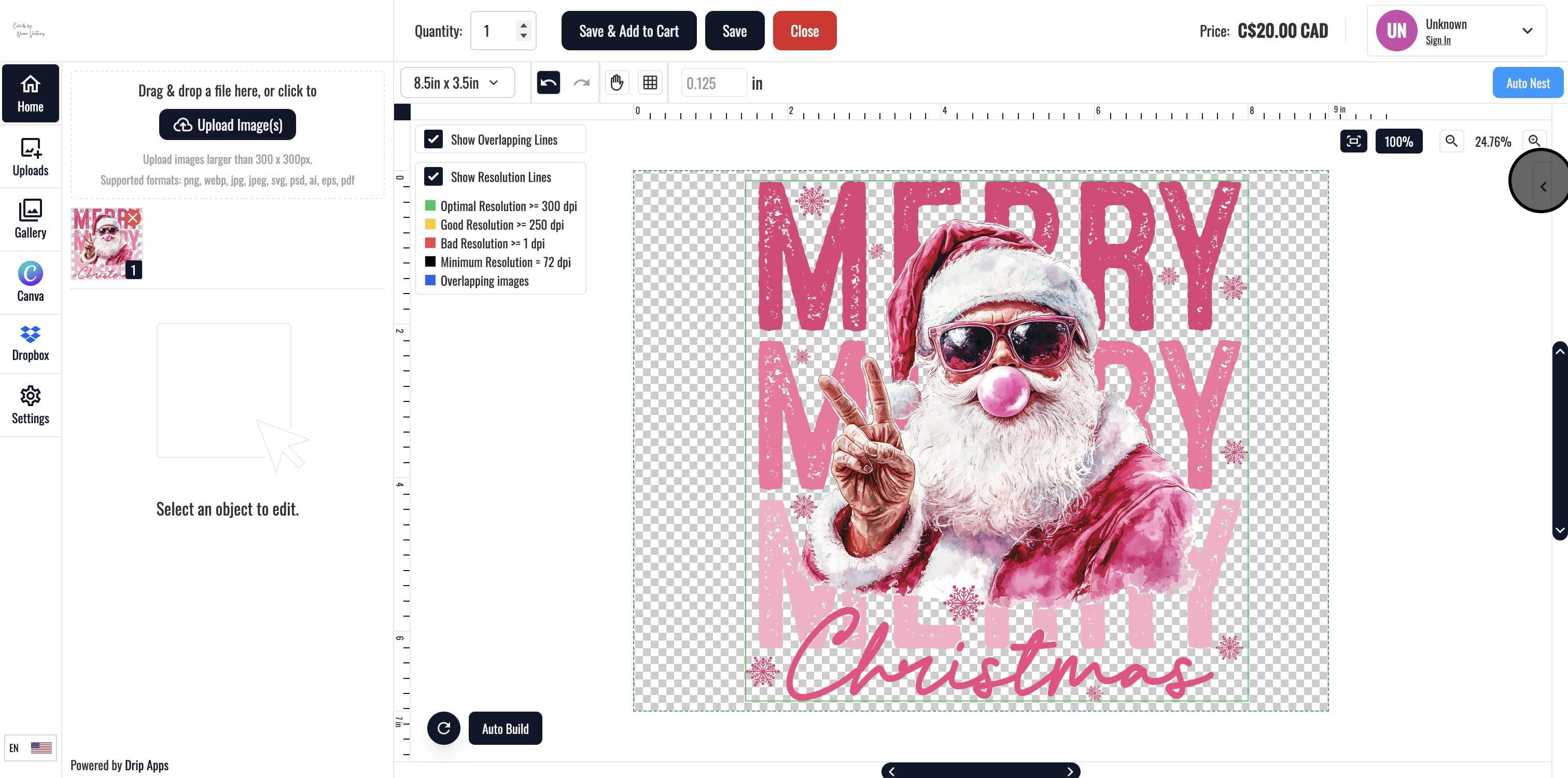
13. Click on Add new design for a new design
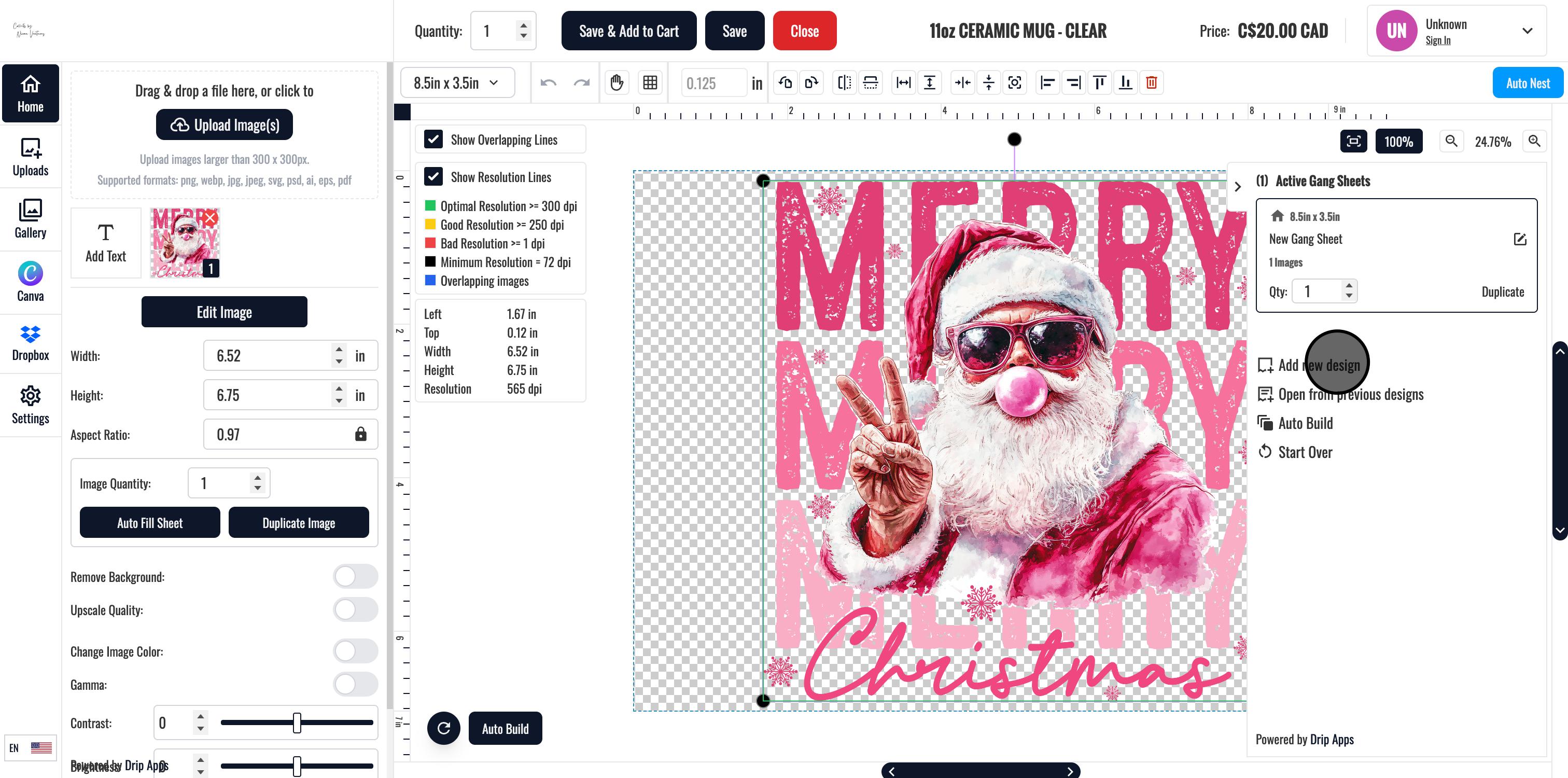
14. Click on the Upload Button to upload another image
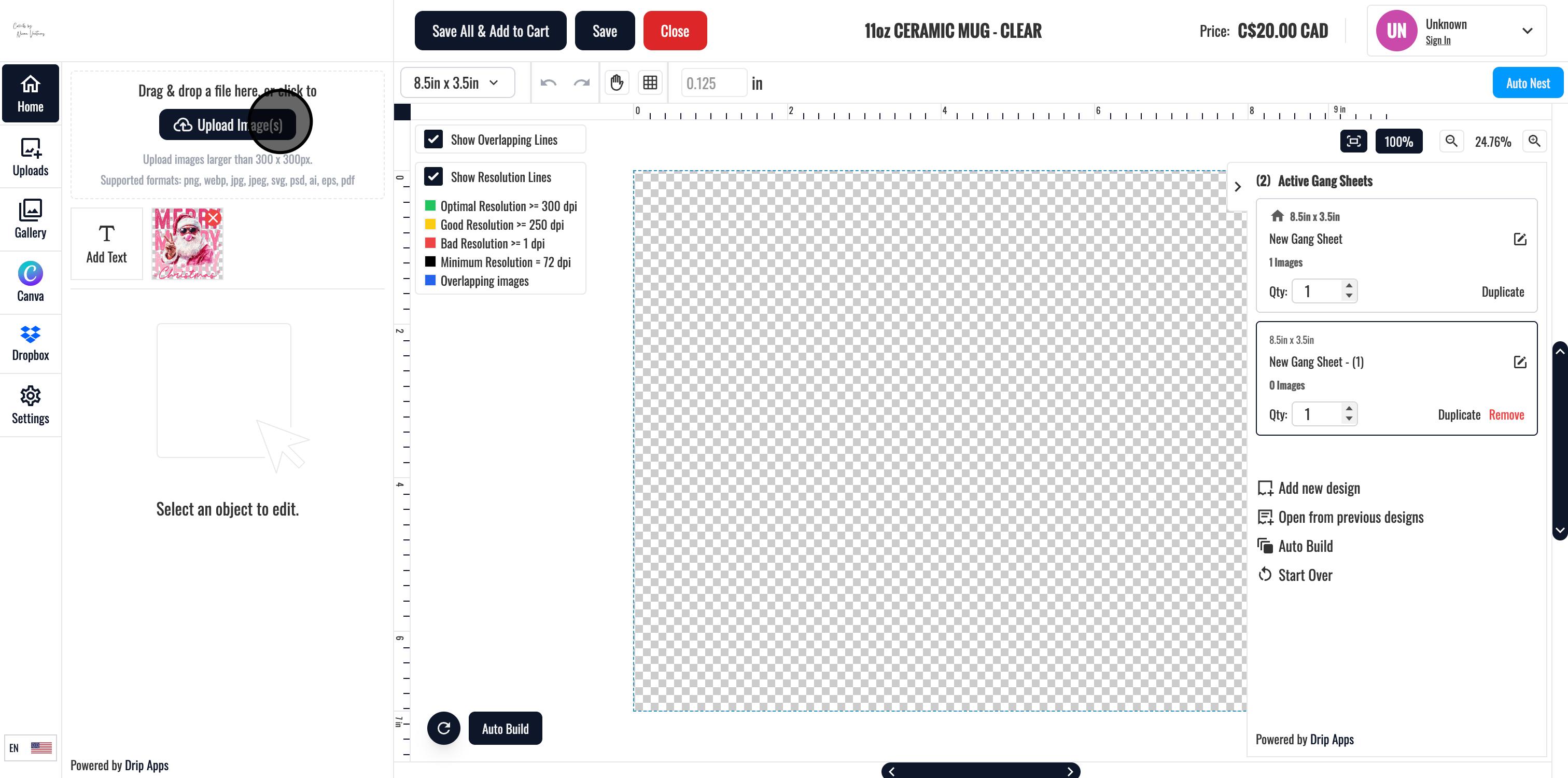
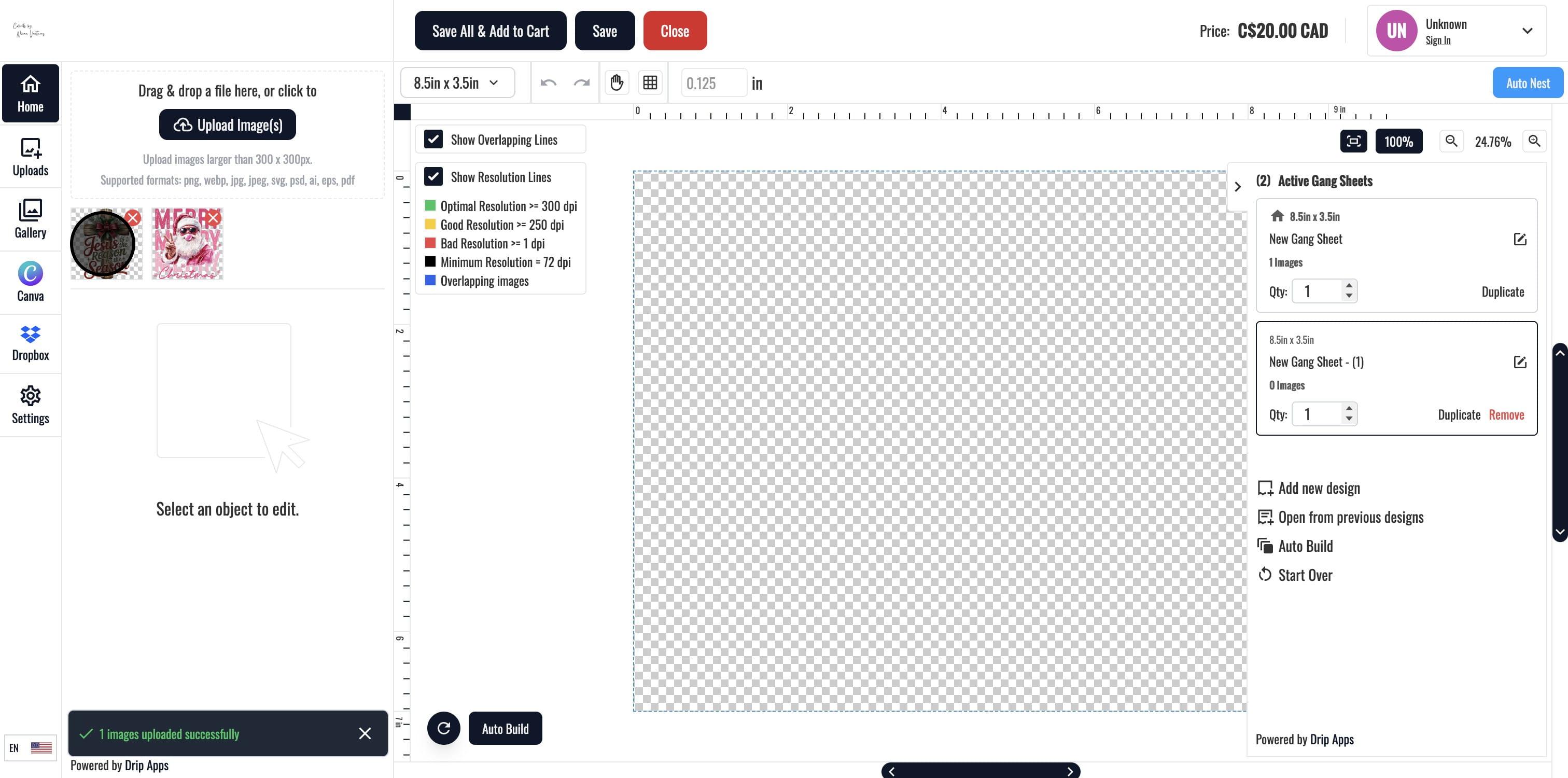
15. Select the New Image
16. For any of the designs, feel free to add a Text and adjust the text based on your design and preference
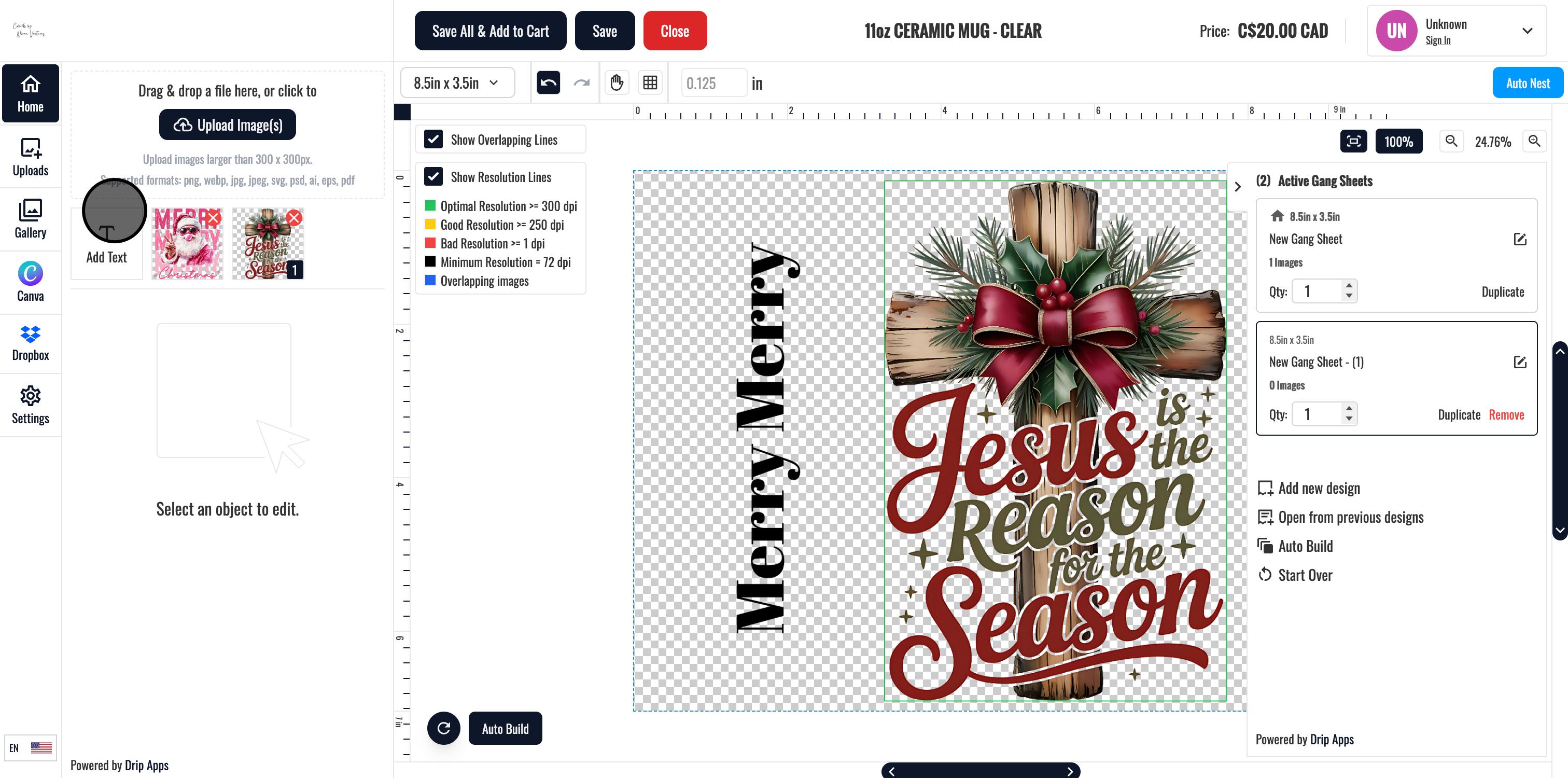
17. You can increase the quantity of each of the designs you want, this will account for the cost on checkout.
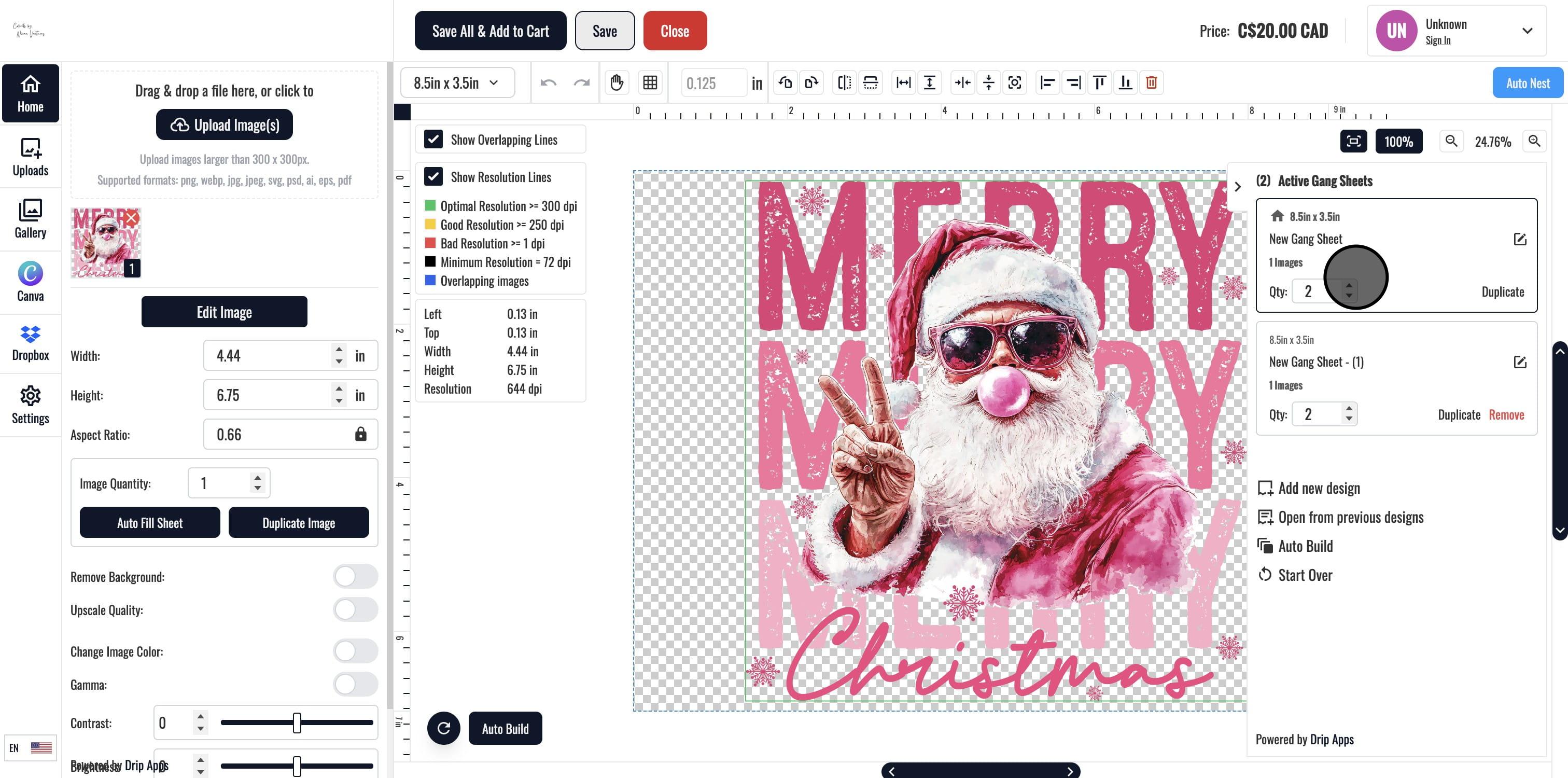
18. To Add To Cart, Click on "Save All & Add to Cart", You can also click on Save to save a design.
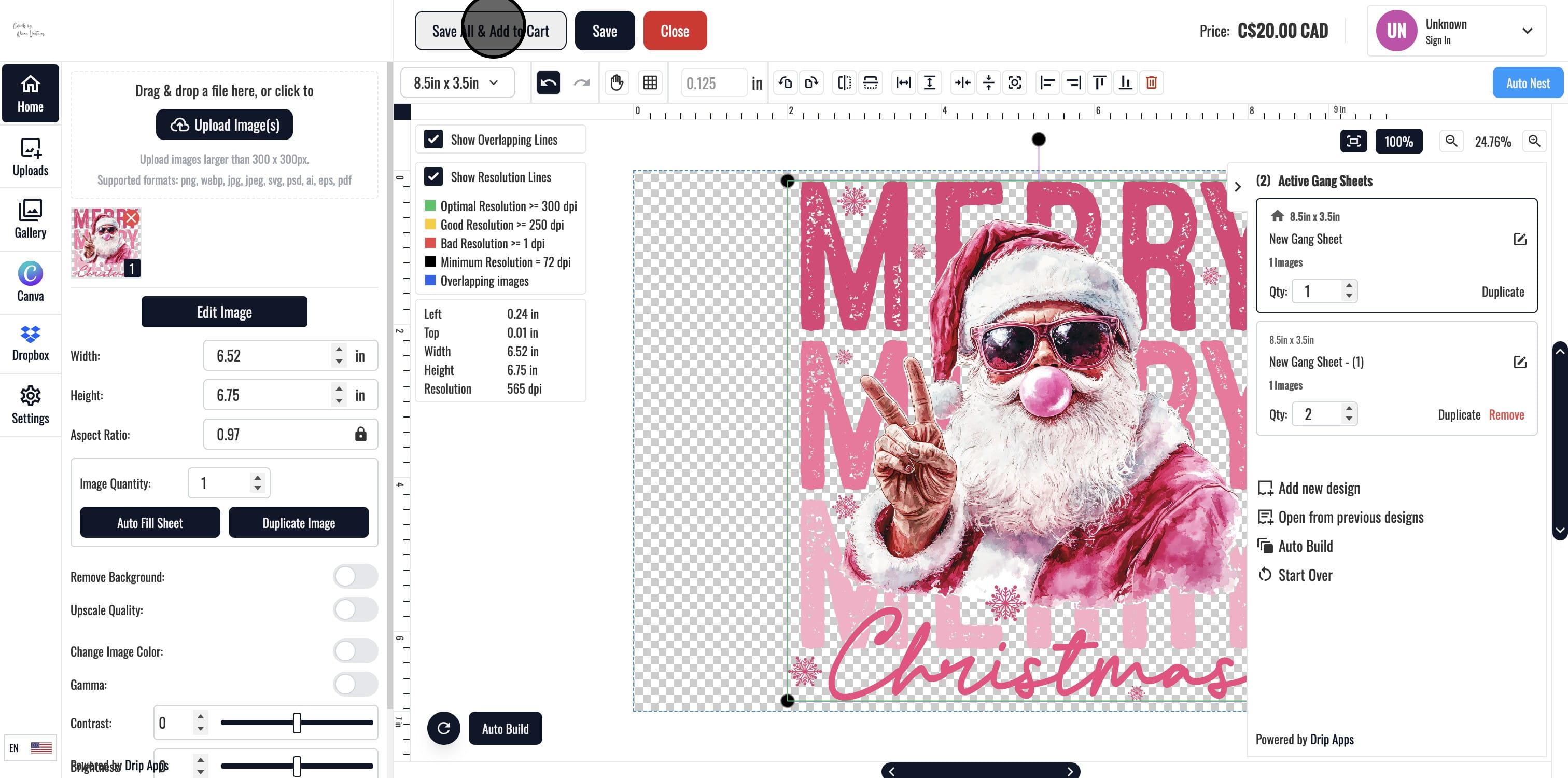
19. Click here
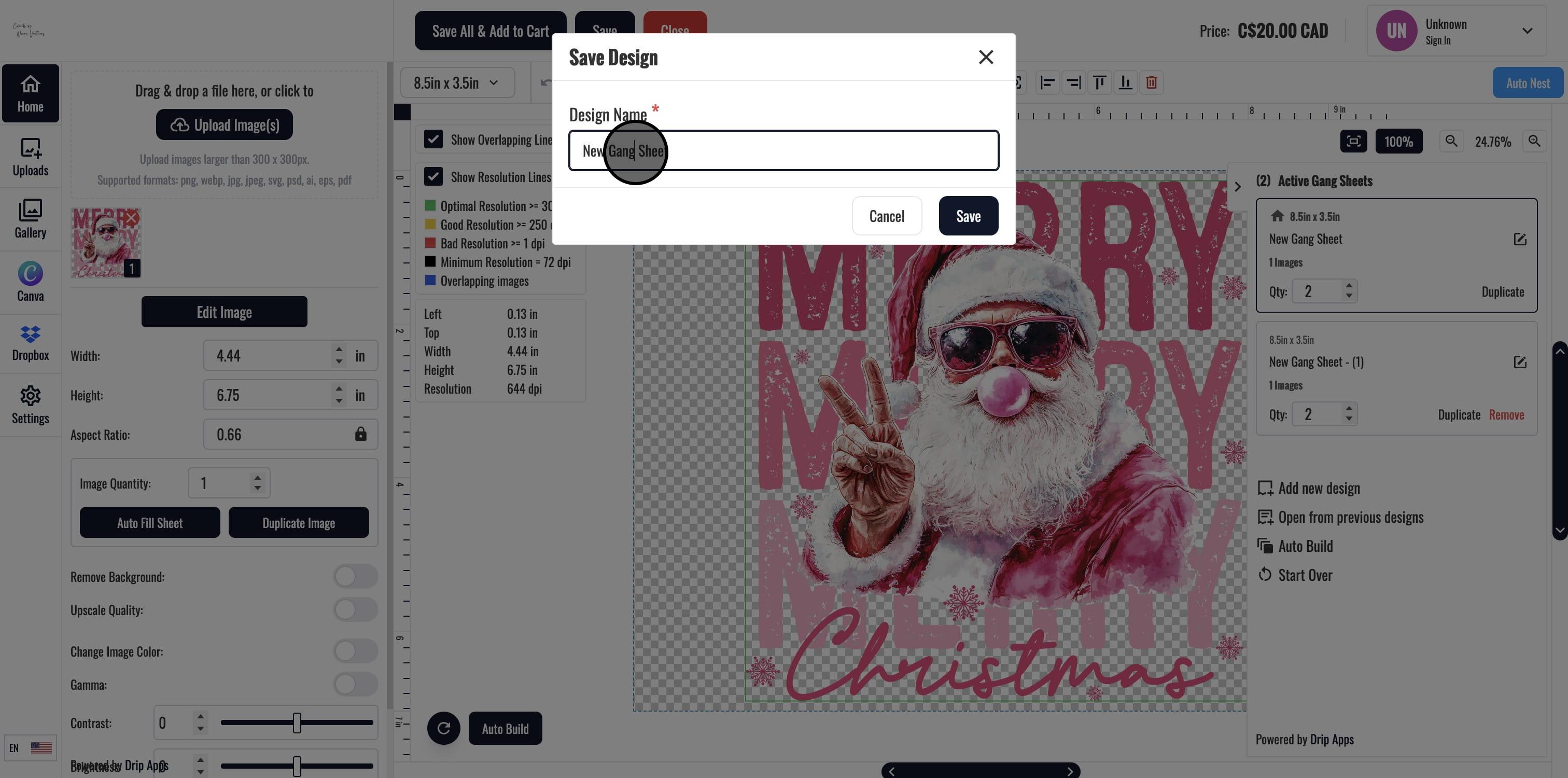
20. Enter Name of Design and Click on "Save"
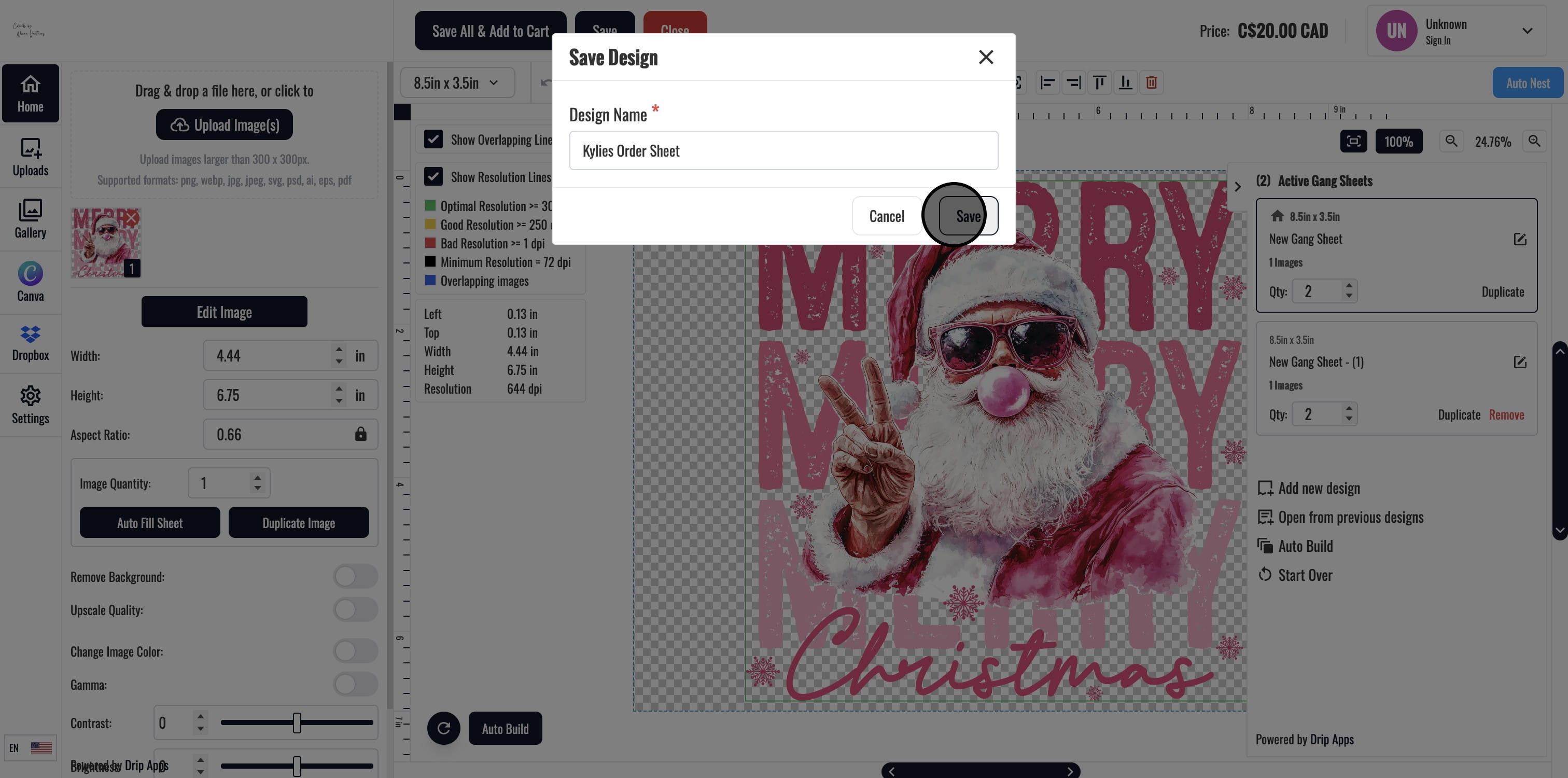
21. This should give you the page to select image background option.
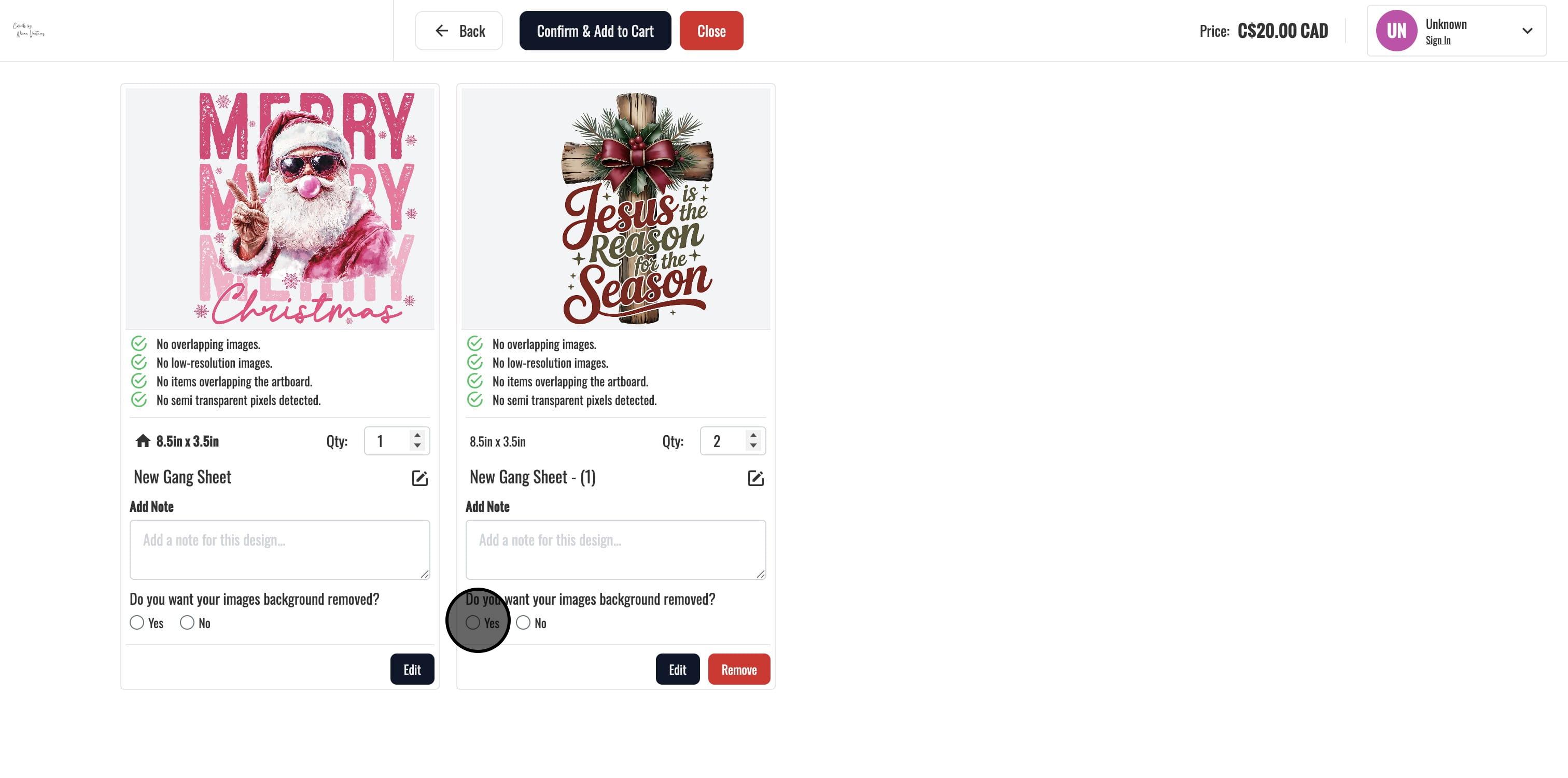
22. Once done, Click on "Confirm & Add to Cart"
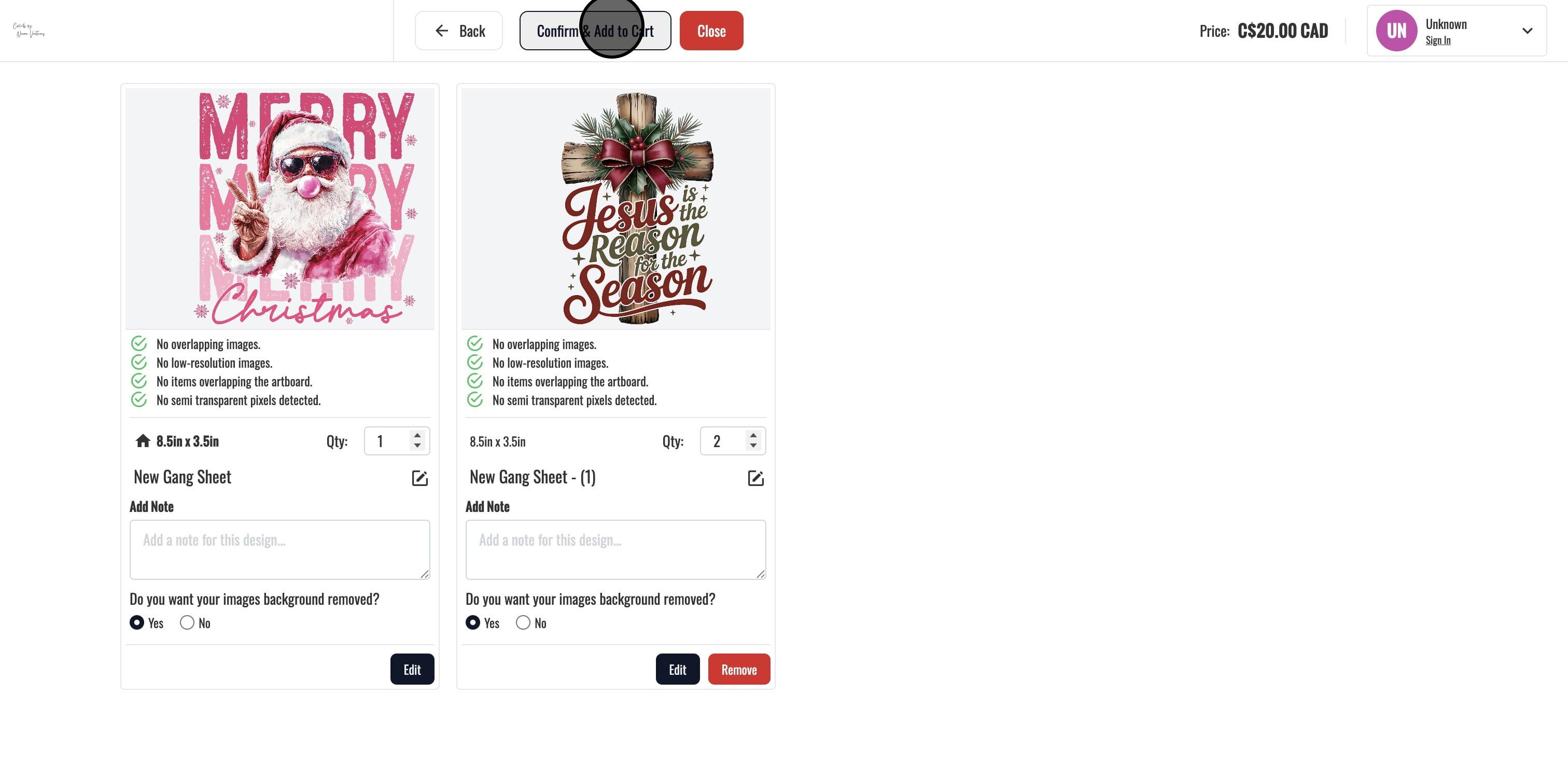
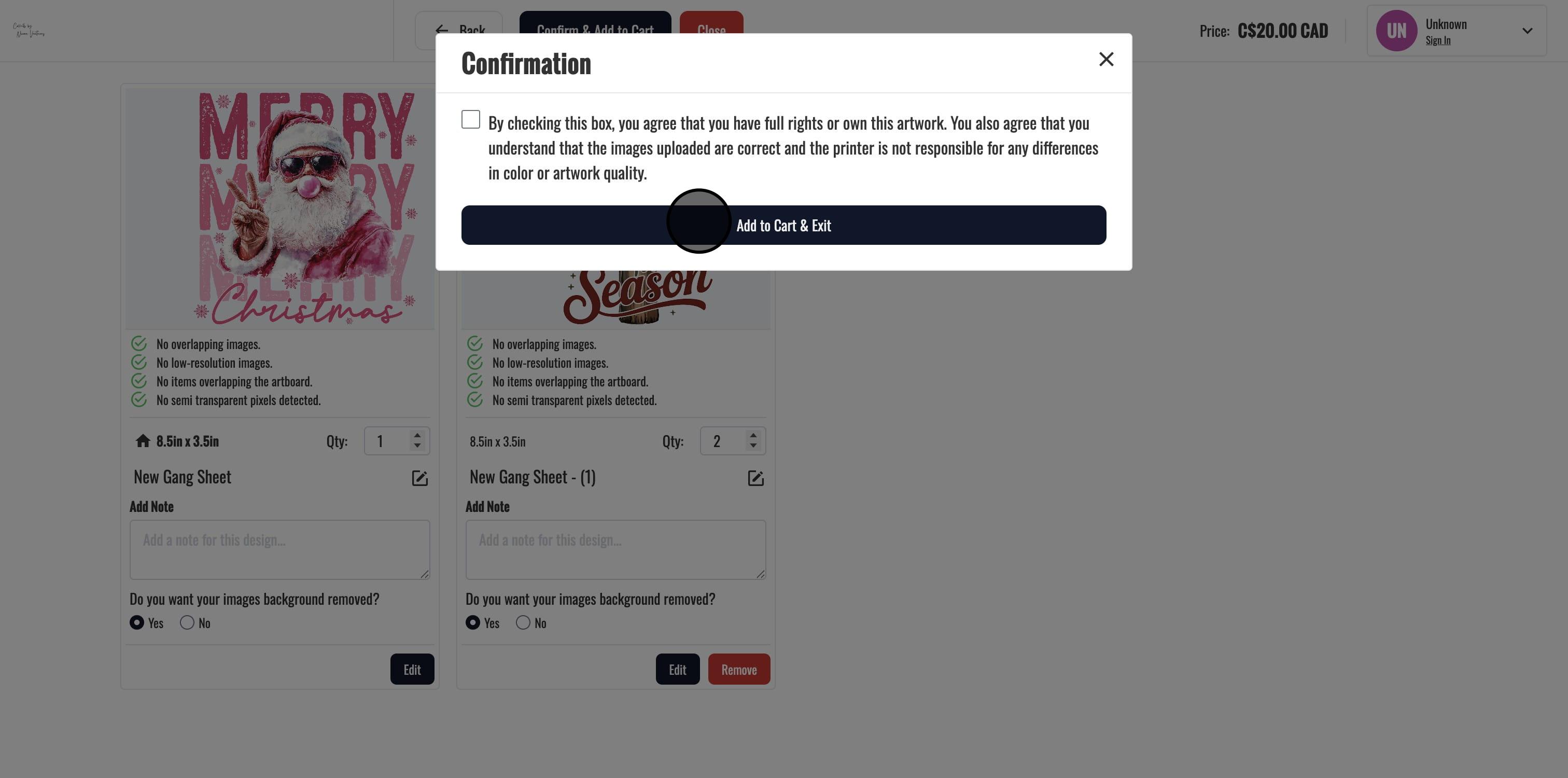
23. Accept the Terms & Condition.
24. You'll notice your quanitity gets matched at checkout.
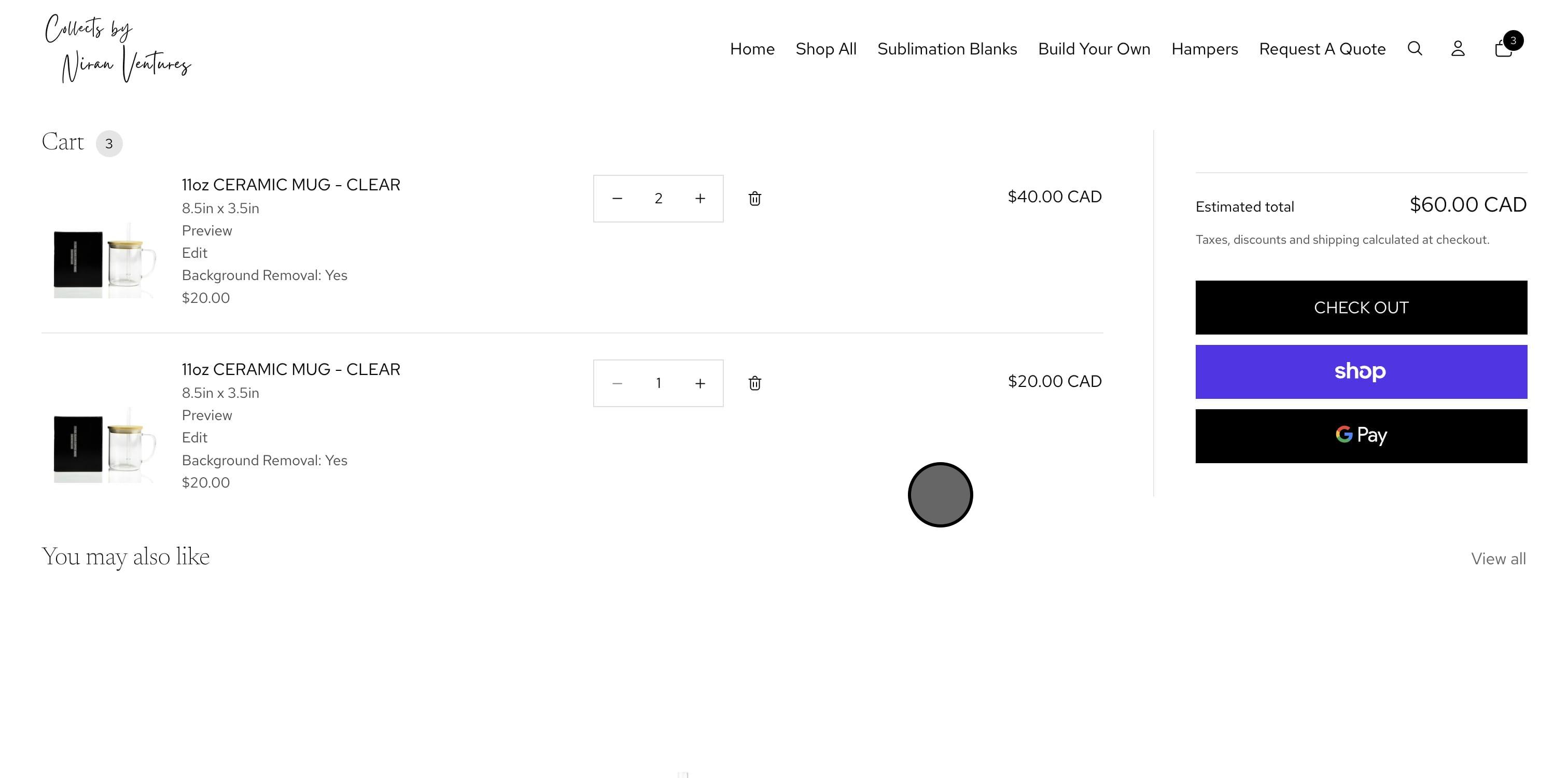
25. You can click on "Edit" to edit your designs.
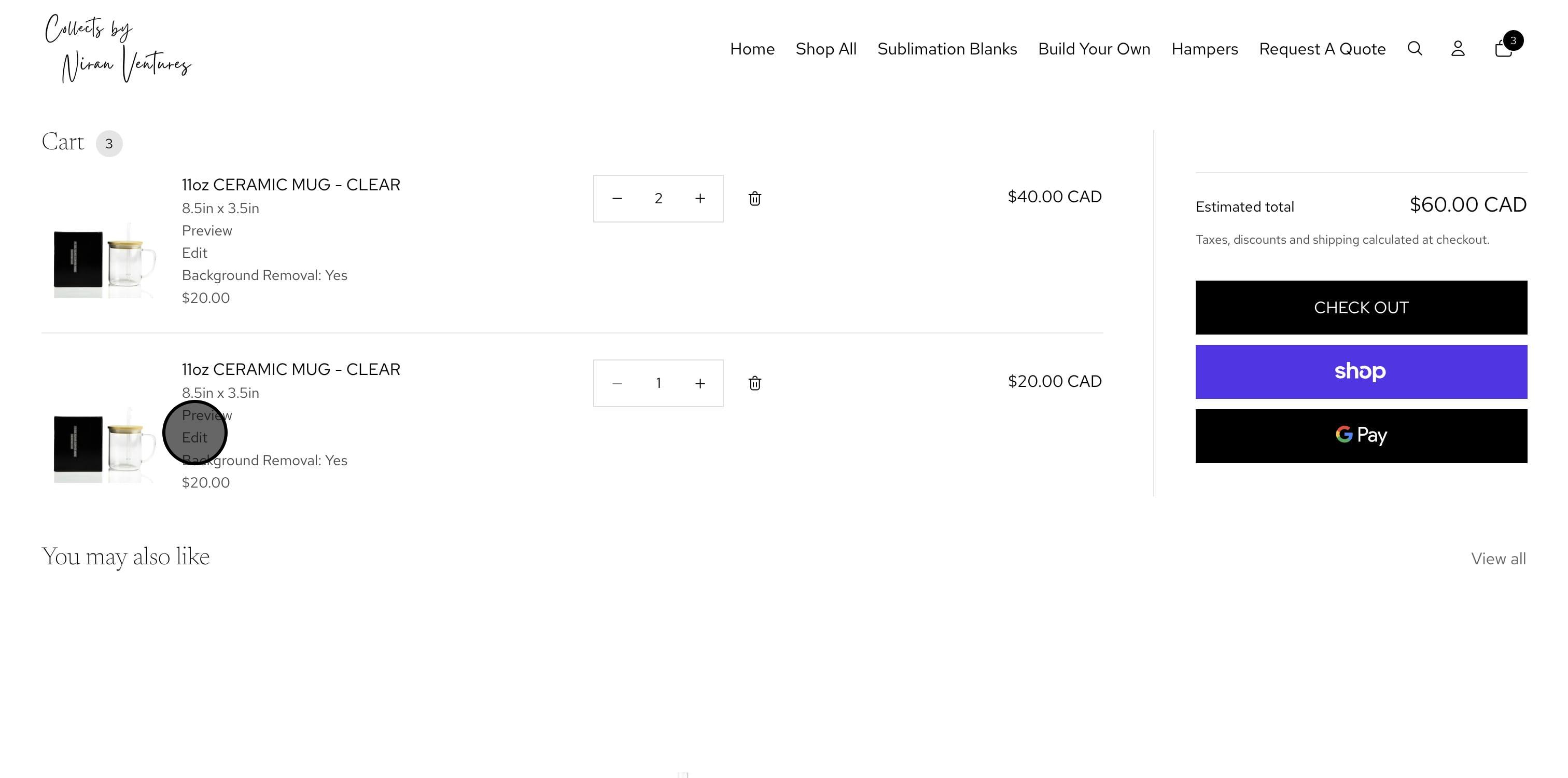
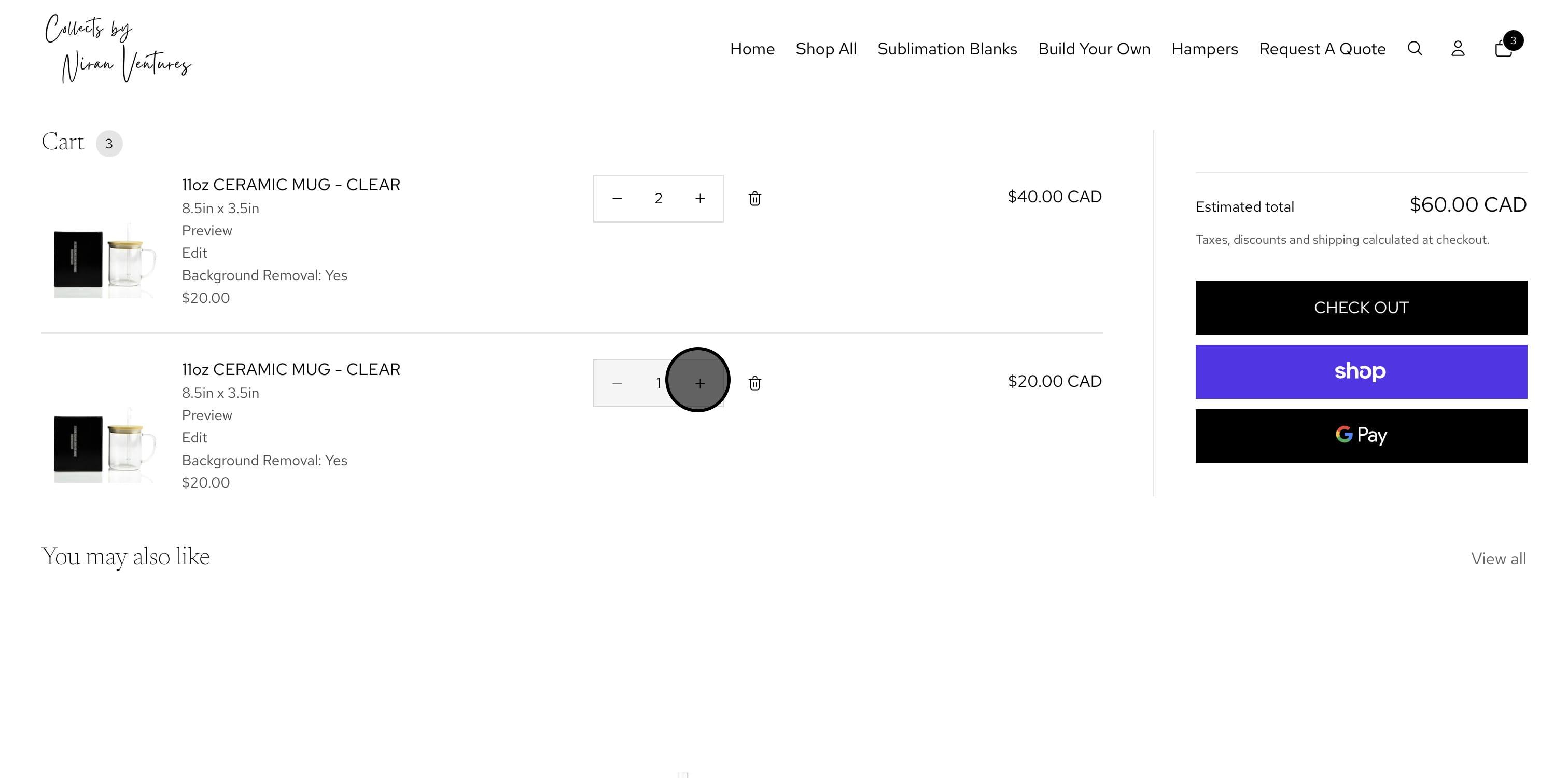
26. You can "Increase quantity" and "decrease quantity" in Cart, use preview to review which design you want to increase the quantity for
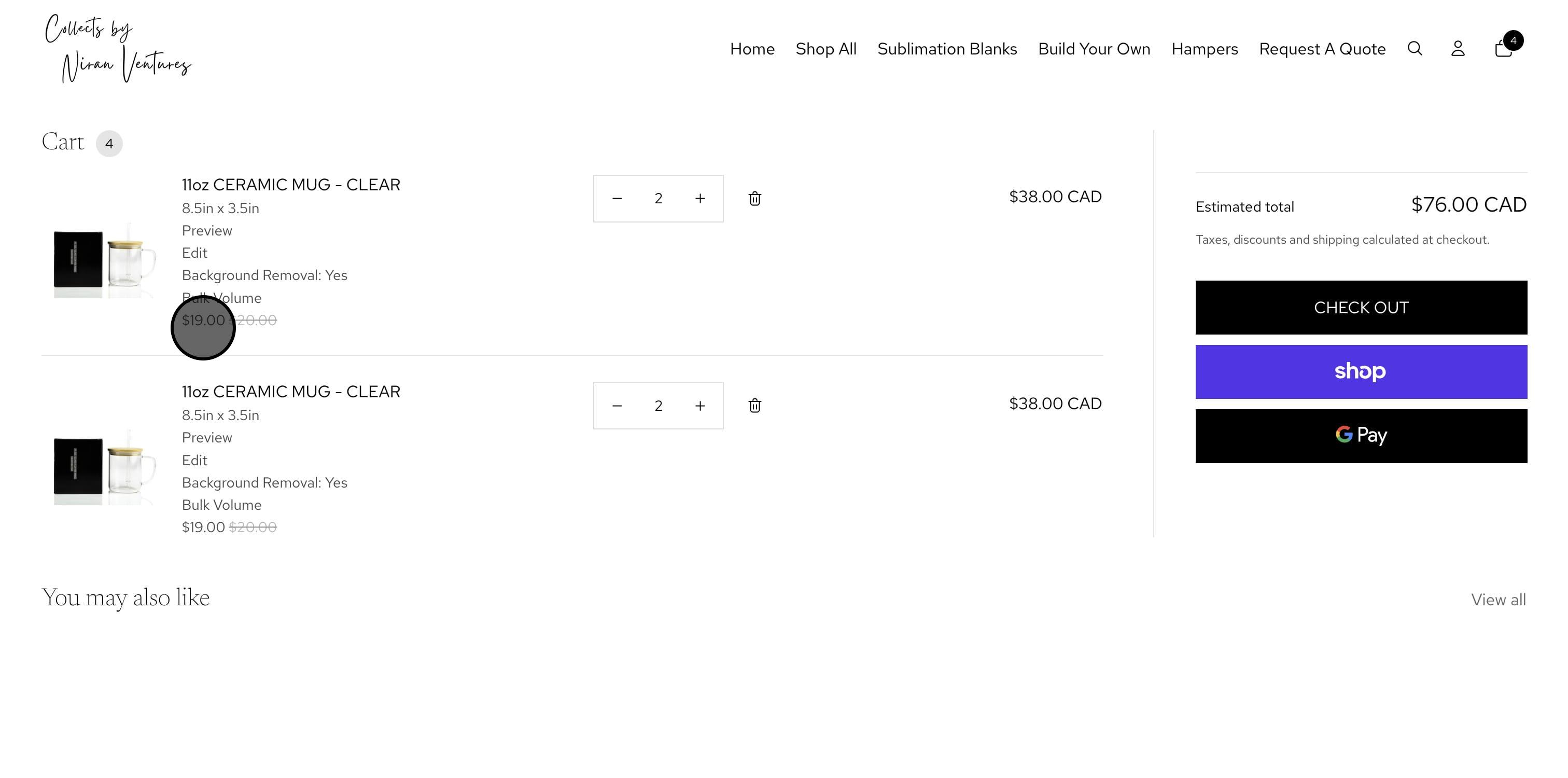
27. Bulk prices will reflect based on additions to cart
28. Click on Checkout to finalize your order